
Most people spend decades building a digital life — thousands of photos, years of social media posts, email threads that document entire relationships, voice memos, notes, playlists, and files. Then, in the absence of any plan, all of it becomes inaccessible, locked, or permanently deleted within months of their death.
This is not a guide about death. It is a guide about ownership.
The photos on your phone right now are rented, not owned. They live on Apple's servers, or Google's, or Meta's — under terms of service that were written for the living and were never designed to handle inheritance. Your family cannot access them after you die without a plan you build today.
This guide shows you exactly how to build that plan — on every platform, in the right order, in under two hours.
Why Most People Never Do This (And Why That's About to Change)
There is a striking gap in how people think about their digital lives.
A 2025 survey found that 79% of Americans believe protecting digital assets is important — yet only 29% feel knowledgeable about how to do it. And according to estate planning attorneys, fewer than 1 in 10 clients have ever included digital assets in their will or estate plan.
The reason is not laziness. It is that digital legacy planning feels abstract, technical, and — let's say it plainly — adjacent to thinking about your own death. The cognitive load is high. The rewards are invisible until the moment they are desperately needed.
But something is shifting. In 2026, Facebook is estimated to hold more accounts belonging to deceased users than living ones within the next two decades. Apple and Google have both built legacy-contact tools into their core settings. Estate planning attorneys are fielding more digital-asset questions than ever before. The conversation is moving from "should I think about this?" to "how do I do it this weekend?"
This guide is the answer to that question.
What Exactly Is a Digital Legacy?
Your digital legacy is the sum of everything you have created, stored, or accumulated online. It includes:
Photos and videos — on your phone, in iCloud, Google Photos, or Dropbox
Social media — your Facebook profile and archive, Instagram posts, TikTok content, Twitter/X history
Email — years of correspondence, attachments, receipts, and relationships
Cloud storage — Google Drive, OneDrive, iCloud Drive: documents, notes, creative work
Streaming and music — Spotify playlists, Apple Music libraries, saved podcasts
Online accounts — banking, subscriptions, PayPal, Venmo, Amazon, loyalty programs
Creative work — blogs, YouTube channels, Substack newsletters, domain names
Messages — WhatsApp threads, iMessage history, Signal conversations
Digital financial assets — cryptocurrency, NFTs, digital business assets
Most people, when they actually count, have 30 to 50 digital accounts. Many of those accounts contain content that is irreplaceable — and none of it transfers automatically.
The Three Things That Happen to Digital Accounts When You Die (Without a Plan)
Understanding the default outcomes makes the urgency concrete.
Outcome 1: Locked. Without pre-set legacy contacts, most accounts become inaccessible to family members after death — even with a death certificate and executor papers. Apple famously requires a court order to grant access to iCloud data if no Legacy Contact was designated. The process can take months and is not guaranteed.
Outcome 2: Deleted. Google's Inactive Account Manager is set to delete inactive accounts after a period of inactivity — up to 18 months by default, but shorter if not configured. Without intervention, years of Gmail, Google Photos, and Google Drive content disappear permanently.
Outcome 3: Frozen. Facebook and Instagram accounts can be memorialized — preserved but locked — if someone reports the death. This prevents family members from downloading the archive. The window between death and memorialization, during which a full export can still be made, is narrow and unpredictable.
The plan you build today is the difference between these outcomes and the alternative: your family receiving everything, cleanly, with dignity, exactly as you intended.
The Complete Digital Legacy Planning Checklist
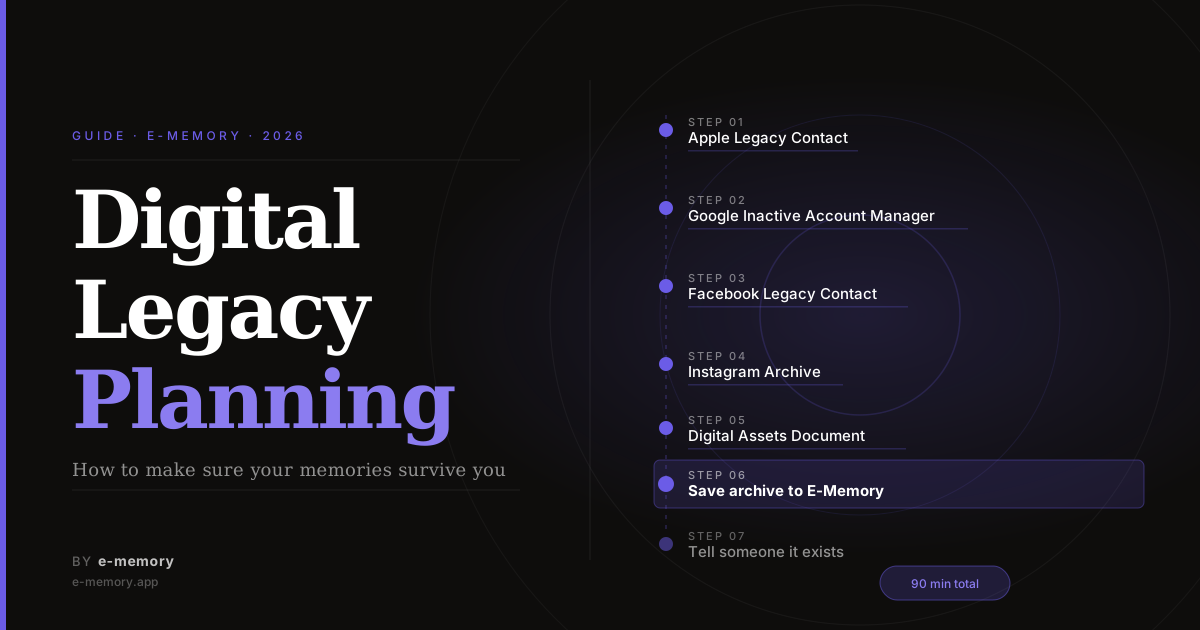
Work through these in order. The entire process takes approximately 90 minutes for most people.
Step 1: Set Up Your Apple Legacy Contact
This is the single most important step for iPhone users. Apple's Legacy Contact feature, available since iOS 15.2, allows you to designate a trusted person who can access your Apple account after you die. Without it, even a death certificate and probate order may not be enough for your family to access your iCloud photos.
What a Legacy Contact can access:
iCloud Photos (the entire library)
iCloud Drive and Notes
iCloud Mail
Safari bookmarks
Calendar and Contacts
What a Legacy Contact cannot access:
Passwords stored in iCloud Keychain
Digital rights-protected content (purchased movies, music)
Payment information
How to set it up on iPhone:
Open Settings and tap your name at the top.
Tap Sign-In & Security, then tap Legacy Contact.
Tap Add Legacy Contact and follow the prompts.
Authenticate with Face ID, Touch ID, or your passcode.
Choose how to share the Access Key with your contact — via iMessage, printed copy, or PDF.
The Access Key is critical. Your Legacy Contact will need both the Access Key AND a death certificate to request access. Store a printed copy with your estate planning documents and make sure your designated contact knows where to find it.
Apple allows Legacy Contacts to access your account for up to three years after your death, after which Apple deletes the account. Plan accordingly.
Step 2: Configure Google's Inactive Account Manager
Google holds a vast amount of most people's digital lives — Gmail, Google Photos, Google Drive, YouTube, Calendar, and Contacts. Google's Inactive Account Manager lets you decide exactly what happens to all of it.
What you can configure:
How long Google waits before considering your account inactive (3 to 18 months)
Up to 10 people to notify when the account becomes inactive
Which Google data each person can download (you choose by service)
A personal message to include in the notification
Whether Google should delete the account after sharing the data
How to set it up:
Go to myaccount.google.com and sign in.
Click Data & Privacy in the left sidebar.
Scroll down to More options and click Make a plan for your digital legacy.
Click Set up under Inactive Account Manager.
Set your inactivity timeout period (recommended: 18 months).
Add at least one trusted contact and choose which data they can access.
Write a message to be sent to your contacts when the account becomes inactive.
Optionally, set up an auto-reply for Gmail that activates after the timeout.
Review and confirm.
Note: Google's Inactive Account Manager is not available for Google Workspace accounts. Use your personal Gmail account. YouTube content is included in this setup if you have a YouTube profile.
Step 3: Add a Facebook Legacy Contact
Facebook's Legacy Contact feature allows a designated person to manage your profile after it is memorialized. This is different from downloading the archive — a Legacy Contact can write a pinned post, respond to friend requests from people who may not have known of your death, and update your cover photo. They cannot read your private messages or remove existing content.
How to set it up:
On Facebook, go to Settings & Privacy → Settings.
Scroll to Memorialization Settings (under General Account Settings or the Privacy section depending on your version).
Click Choose a legacy contact and search for the person.
Send them a notification (optional but recommended — let them know you've named them).
Also in this section: You can request that your account be deleted rather than memorialized after your death. If you prefer deletion, select that option. If you want your archive to be downloadable by your Legacy Contact, confirm that option is enabled.
Critical: If you want your family to be able to download your full Facebook archive after your death, do it yourself now — while you are alive. Go to Settings → Your Facebook Information → Download Your Information and download a full copy. This archive, containing every post, photo, video, and message, can be stored with your estate documents or uploaded to E-Memory as a living archive that your family can access.
Step 4: Handle Instagram
Instagram (owned by Meta) has its own separate memorialization process from Facebook. The two platforms do not share settings — you need to address each independently.
Instagram currently does not offer a dedicated Legacy Contact feature in the way Apple and Facebook do. Your options are:
Memorialization: A family member can submit a memorialization request to Instagram after your death. The account is preserved but frozen — no new content, no login.
Removal: A family member can request the account be removed entirely.
Download your own archive now: Go to Instagram.com → Settings → Privacy and Security → Download Data. Request your archive. This contains every photo, video, story, and message you have ever sent. Download it, store it securely, and let your family know it exists.
Step 5: Prepare a Simple Digital Assets Document
This is the step most people skip — and the one their family will need most.
A Digital Assets Document is not a legal document. It does not need to be notarized or filed with an attorney. It is simply a clear, organized list of your digital life, stored somewhere your trusted person can find.
What to include:
A list of every significant account (email, social media, banking, subscriptions, cloud storage)
The email address associated with each account
Instructions for each: "memorialize," "delete," or "pass on"
The location of your password manager (not the passwords themselves — just the name and how to access it in an emergency)
The location of your Apple Legacy Contact Access Key
Instructions for your Google Inactive Account Manager settings
A link to your Facebook archive download (or its storage location)
A note about any cryptocurrency or digital financial assets
Store this document with your physical will, in a fireproof safe, or in a sealed envelope given to your designated executor with the instruction: "open if I die or become incapacitated."
Do not store passwords in plain text in this document. Instead, note the name of your password manager and where the emergency access key or master password is stored.
Step 6: Download and Preserve Your Own Archive Now
This is the step that transforms digital legacy planning from administration into something meaningful.
Your Facebook archive is not just a backup. It is a complete record of your social life — every post, every photo, every video, every comment — organized by year. Your Google Photos archive is a visual autobiography. Your Instagram archive is a decade of moments.
None of your family members will be able to reconstruct this from memory. But you can package it now, while everything is accessible and intact.
Download your Facebook archive: Settings → Your Facebook Information → Download Your Information → Select All → High Quality → Request Download.
Download your Instagram archive: Settings → Privacy and Security → Download Data → Request.
Download your Google Photos: Go to takeout.google.com and select Google Photos. Choose your format and frequency. Download the archive.
Once downloaded, do two things:
Store a copy on a local hard drive or USB drive with your estate documents.
Upload it to E-Memory — a permanent memorial archive that your family can access, add to, and return to, and that exists independently of any single platform's policies or longevity.
E-Memory was designed specifically for this: it accepts Facebook and Instagram archives directly, organizes them chronologically, and creates a living record of your story that can be shared with family members, linked to a QR code, and accessed anywhere in the world.
Step 7: Tell Someone What You Have Built
A plan that no one knows about is not a plan. It is a folder.
Tell your designated person — your partner, your adult child, your executor, your closest friend — that you have done this. Tell them specifically:
That you have set up an Apple Legacy Contact and where the Access Key is stored
That you have configured Google's Inactive Account Manager with their contact information
That you have a Facebook Legacy Contact designated
Where your Digital Assets Document is stored
That a copy of your archive exists on E-Memory (or wherever you stored it)
A five-minute conversation now saves your family months of frustration and potential loss during the worst time of their lives.
What About the Rest: Subscriptions, Crypto, and Financial Accounts?
A complete digital estate plan goes beyond the social and personal — it includes the financial and functional.
Subscriptions and recurring payments — Netflix, Spotify, Amazon Prime, cloud storage, SaaS tools — should be listed in your Digital Assets Document with a note to cancel after death. Families routinely discover unknown subscriptions continuing to bill accounts for months after a death.
Banking and financial accounts — these are handled through your traditional estate plan and executor. Do not store banking passwords in your Digital Assets Document. Instead, include only the account names and the instruction to contact your estate attorney.
Cryptocurrency — this is a category requiring separate planning. Without a private key or seed phrase, crypto holdings are permanently inaccessible after death. If you hold any cryptocurrency, a separate secure document (stored physically, not digitally) should contain the wallet type, the seed phrase or private key location, and explicit instructions for your executor. Never store seed phrases digitally.
Domain names and online businesses — if you own a blog, YouTube channel, online store, or any monetized digital property, your executor needs to know it exists, where it is hosted, and what your wishes are. These can have real financial value and can also be sources of ongoing income for your family.
How to Start This Weekend: A 90-Minute Plan
If reading this has created a sense of urgency, here is the fastest possible path to having a real plan in place:
First 30 minutes:
Set up Apple Legacy Contact (iPhone) or Google's Inactive Account Manager (Android)
Configure Facebook Legacy Contact
Next 30 minutes:
Download your Facebook and Instagram archives
Download a Google Takeout export of Google Photos
Final 30 minutes:
Create your Digital Assets Document (a simple text file or printed list)
Upload your Facebook or Instagram archive to E-Memory
Tell your designated person it exists and where everything is stored
That is the complete plan. Nothing about it is permanent — you can update it every year, add accounts, change your Legacy Contact. But once those three steps are complete, the most critical risks are covered.
Frequently Asked Questions
What is digital legacy planning?
Digital legacy planning is the process of deciding what happens to your online accounts, digital files, photos, and other digital assets after you die or become incapacitated. It involves designating trusted contacts who can access your accounts, downloading archives of important content, creating documentation for your executor, and ensuring your family is not locked out of memories and assets that would otherwise be inaccessible.
What happens to my Apple iCloud account when I die?
Without a Legacy Contact designated in advance, your iCloud account — including all photos, notes, documents, and email — becomes inaccessible to your family after your death. Even with a death certificate and executor papers, Apple requires a court order to grant access to iCloud data when no Legacy Contact has been set up. Setting up a Legacy Contact takes about five minutes in your iPhone Settings and completely prevents this problem.
What happens to my Google account when I die?
Without configuring Google's Inactive Account Manager, your Google account will eventually be deleted after a period of inactivity — taking Gmail, Google Photos, Google Drive, and YouTube with it. Google's Inactive Account Manager lets you specify trusted contacts, what data they receive, and when the trigger activates. It is available at myaccount.google.com under Data & Privacy → Make a plan for your digital legacy.
What happens to my Facebook account when I die?
If someone notifies Facebook of your death, your account is memorialized — preserved in a read-only state with a "Remembering" label added to your name. Without a Legacy Contact designated in advance, no one can download your archive after memorialization. If you want your family to have your full Facebook archive, either download it yourself now (Settings → Your Facebook Information → Download Your Information) or designate a Legacy Contact who can request it.
Is it morbid to plan your digital legacy while you're still alive?
No — and this question comes up so often that it deserves a direct answer. Planning your digital legacy while you are alive is an act of care for the people who love you, not a sign of morbidity. The alternative — leaving no plan — forces grieving family members to navigate bureaucratic processes across multiple tech platforms during one of the hardest periods of their lives. Doing this in advance is no different from writing a will: it is responsible, loving, and entirely practical.
Do I need a lawyer to plan my digital legacy?
For the core practical steps — setting up Legacy Contacts on Apple, Google, and Facebook, downloading your archives, and creating a Digital Assets Document — no lawyer is required. You can complete all of these steps yourself in under two hours. If you have digital assets with significant financial value (cryptocurrency, domain names, online businesses), it is worth consulting an estate planning attorney to ensure those assets are correctly addressed in your will or trust.
What is the best way to store my digital archive for my family?
The most resilient approach combines three things: a local backup (hard drive or USB stored with your physical estate documents), a cloud backup (Google Photos, iCloud, or similar), and a dedicated memorial platform that exists independently of any single tech company's policies. E-Memory accepts Facebook and Instagram archives directly and creates a permanent, shareable memorial page that your family can access, add to, and return to — even decades after your death.
How often should I update my digital legacy plan?
Review your plan once a year — the same time you review your will or financial beneficiaries. Update it whenever you open a significant new account, change a Legacy Contact, or make a major life change (marriage, divorce, new children). A five-minute annual review is sufficient for most people.
The Statistic That Changes the Conversation
In 1900, the average person left behind a wooden box of photographs, a few letters, and whatever physical objects survived them.
In 2026, the average person leaves behind approximately 5 terabytes of digital content — photos, videos, documents, messages, posts, and recordings accumulated across decades of digital life.
Almost none of it is planned for.
The irony is that the digital age has made preservation infinitely easier and infinitely more neglected at the same time. You do not need to seal photographs in jars or trust that a box in the attic will survive. You need 90 minutes, a document, and the decision to begin.
Your grandchildren will one day ask what you were like. Not the official version — the real one. The photos from ordinary Tuesdays. The voice memos you sent. The posts about things that made you laugh.
That archive already exists. Whether it survives depends entirely on what you do today.
Start building your permanent digital archive on E-Memory — free, no credit card required →
Published by E-Memory | e-memory.app Updated: June 2026
